Zara Scorecard
Updating the Scorecard
Scorecard Data Collection
SISU Data
Obtained via Control Tower
https://sisu.inditex.com/control-tower/productivity
- Packed Orders
- Packed Units
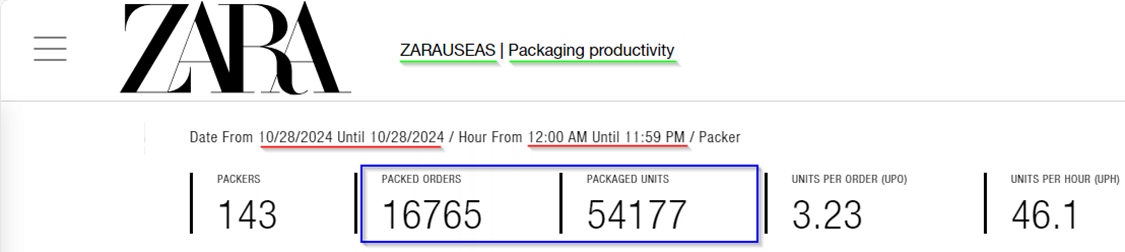
Change Time Zone to Pacific when gathering Rialto & Vancouver Data (UTC-8:00 Pacific Time (US & Canada)
PTL Sorted Data - SISU Sorting
Sign in as RQHYsTsaWz2Wi67uT5uwCA==
EPAC - SGA App (Vancouver)
EPAC -> Reports -> Sorted by user PTL
- PTL Units
(bottom left corner of window displays grand total of units)

MSR - SGA App
AGV & Manual : PO, BS, RT, PT
MSR -> Reports -> User Production
- AGV Picked Units
AGV: AGV Distribution by Quadrant, AGV Distribution by Superquadrant
- Manual Picked Units
Manual: Guided Quadrant Picking, Picking Ecommerce to Bulk Number, Picking without Paper
MSR -> Reports -> Movements
Select all Movement Types under AGV and Manual, export to Excel, delimit and pivot to refine Metric Types.
*STATUS - COMPLETED*
| AGV | Manual | Metric Types |
| AGV Placing Bulk with Recommendation | Box Placing | AGV PO Putaway |
| Automation Direct Placing | Direct Placing | AGV Backstock Putaway |
|
Automation Multireference Placing |
Multireference Placing |
AGV Returns Putaway |
| Automation Placing Sku Scanning | Place Bulk Scanning with Recommendation | AGV Inbound PT Putaway |
| Automation Placing Sku Scanning with Amount | Place Bulk with Recommendation |
Manual PO Putaway |
| Placing Sku from Bag | Manual Backstock Putaway | |
| Placing Sky Scanning | Manual Returns Putaway | |
| Placing by Proximity | Manual Inbound PT Putaway | |
| Placing by Proximity Guided | ||
| Placing Full Container | ||
| Placing Scanning | ||
| Placing Sku with Amount | ||
| Placing with Amount |
Work Order Types
|
Work Order Prefix |
Inbound Work Type |
What it is? |
|
PO |
PO |
New Product from Zara |
|
BS |
Backstock |
Old Stock from Stores |
|
RT |
Returns |
Items returned to Zara and processed a Carbel (Easton & Rialto, Vancouver processes their own returns) |
|
PT |
Picking Transfer |
Product transferred from other Zara warehouses |
B2B AGV & Manual Picked Units
Select all Movement Types under AGV and Manual, export to Excel, delimit column and pivot to refine Metric Types.
| AGV | Manual |
| AGV Distribution by Multilocation | Guided Shop Picking |
| AGV Distribution by Shop | Guided Totals Picking |
| AGV Distribution by Total |
- B2B AGV Picked Units
- B2B Manual Picked Units
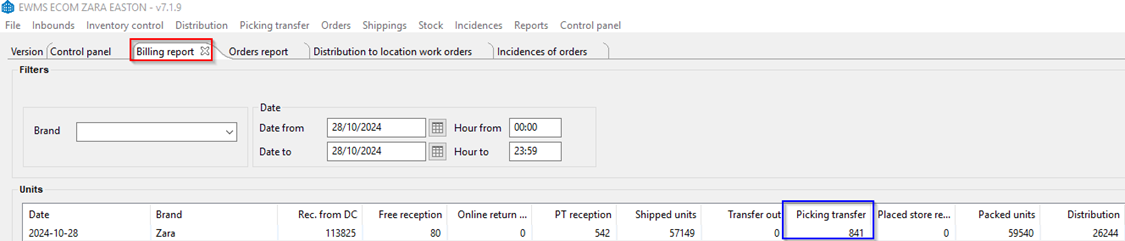
EWMS - SGA App
EWMS -> Reports -> Billing Report
- PT Outbound Units
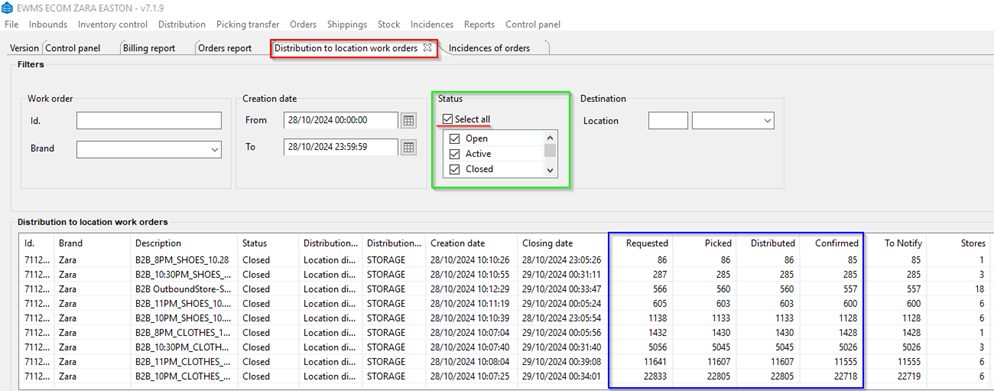
EWMS -> Distribution -> Distribution to Location Work Orders
- B2B Requested Units
- B2B Distributed Units
- B2B Confirmed Units
- B2B Picked Units
*STATUS - COMPLETED*
EWMS -> Orders -> Orders Report
- Sold Units
- All of the below may be preselected by default. The highlighted below are the only ones that need to be selected manually.
| Pending | Picking | Preselected | Packing | Picked | Packed | Shipping | Shipped |
| Canc. Unpacking | Stock Pending | Stock Reported | Stock Received | PTL Sorting | PTL Sorted | Stock Partial Reported | Stocked PTL Sorted |
| Stock PTL Sorting | Stock PTL Partial Sorted | Stock Partial Received | PTL Finished | Shipped Deferred | Labelling |
EWMS -> Reports -> Billing Report
- Shipped Units

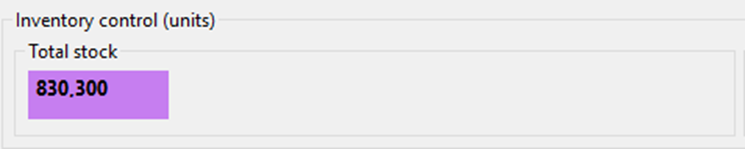
EWMS -> Control Panel -> Control Panel
- Total Stock Units
Updating the SQDCP File
Updating SQDCP
Quality
Minesweeper (Smartsheet)
Put-Away Errors
MSR -> Reports -> Quality Incidences Visualization
- Set Operation to Put-Away
- Change Date Type to Incidence Date
- Input the Start (00:00:00) and End (23:59:59) Date/Time
- Set Control Result to Pending Feedback, Feedback Committed
- Search & add both Control Results together for Total
Pick Errors
MSR -> Reports -> Quality Incidences Visualization
- Set Operation to Picking
- Change Date Type to Incidence Date
- Input the Start (00:00:00) and End (23:59:59) Date/Time
- Set Control Result to Pending Feedback, Feedback Committed
- Search & add both Control Results together for Total
Packing Errors
SISU Control Tower -> Quality Control
- Set Date & Time and Filter, record the KO
Packed Orders Audited
SISU Control Tower -> Quality Control
- Set Date & Time and Filter, record the Audited Orders
Requires Incognito Browser &/ Inditex Login to access their PowerBi for the following 4 Metrics
Soft Scan Percentage (INDITEX PowerBi)
Percentage of Specialized Line Orders (INDITEX PowerBi)
Percentage of Specialized Packing Tables (INDITEX PowerBi)
PTL Sorting Errors (INDITEX PowerBi)
PTL Units
- Scorecard: ECOM Sheet - Row 103
Units Cancelled
EWMS -> Incidences -> Incidences of Orders
- Purchase Date: Delete the Date in " From & To "
- Choose Incident Types : Damaged & Missing
- Change the Date Type to Finalization Date
- Set the State to Closed
- Set Date & Time for all day yesterday & Search.
Total will be listed in bottom left.
Incidences Created
EWMS -> Incidences -> Incidences of Orders
- Purchase Date: Delete the Date in " From & To "
- Choose Incident Types : Damaged & Missing
- Change the Date Type to Creation Date
- Set the State to ALL SELECTED STATES
- Set Date & Time for all day yesterday & Search.
Total will be listed in bottom left.
Delivery
ECOM Picked Units
ECOM Sheet : Row 18
B2B Picked Units (MSR)
B2B Sheet : Row 19
Planned Inbound Units
Inbound Sheet: Radial Planned Putaway
Units Putaway
ECOM Sheet : Row 18
ZARA Forecast Outbound Units
Outbound Sheet : Adjusted Forecast
Radial Planned Outbound Units
Outbound Sheet : Planned Units Processed
ECOM Packed Orders
ECOM Sheet : Row 112
ECOM Packed Units
ECOM Sheet : Row 108
PT Total Units
ECOM Sheet : Row 99
Delivery - MSD Report
All Data Recorded from MSD Bridge Email
MSD - Wrong MSD
MSD - PT
MSD - Packed Late
MSD - Packed On Time
MSD - Late Courier
MSD - Misses Due To Courier
MSD - On Time Ship
MSD - True Delay
MSD - Radial MSD Orders
Delivery
B2B - Requested Units
B2B Sheet : Row 9
B2B - Confirmed Units
B2B Sheet : Row 11
Cost
Inbound UPH
ECOM : Row 33
Inbound Target
ECOM : Row 34
Pick UPH
ECOM : Row 88
Pick Target
ECOM : Row 89
PTL UPH
ECOM : Row 105
Pack UPH
ECOM : Row 110
Pack Target
ECOM : Row 111
Ship UPH
ECOM : Row 117
Facility UPH
ECOM : Row 154
Facility UPH W/O Training
ECOM : Row 156
Indirect Hours
ECOM : Row 158
B2B UPH
B2B : Row 66
Safety / People
Safety
Near Miss & First Aids (Smartsheet)
https://app.smartsheet.com/b/publish?EQBCT=6c1ad88c0fb9407b981fae6507c73c22
OSHA Recordables
Drag cell down to next Row, manually input if informed of OSHA Recordable from Safety & Security Team
BBS Cards (Smartsheet)
https://app.smartsheet.com/sheets/GCWPVCG2RJGJwhp6PHV2rcqqXg2pgrXXq84PRMj1?view=grid
Number of Safe Days
Drag cell down to next Row
Number of Days W/O Near Miss
Drag cell down to next Row
People
Data can be found from Scheduled HC Excel File
Actual Attendance
SQDCP Sheet : Find respective date and report
Expected
SQDCP Sheet : Find respective date and report
Zara Daily Metrics Report
Daily Metrics Report
Peak Metrics Spreadsheet
Begin once Scorecard is Completed
Peak Metrics
Open Document in Desktop Mode whilst Hardwire / VPN connected & Refresh the Data to update the rows to populate with yesterday's data. Copy the two rows for B2B & B2C (Column: Project) and paste them into the Zara Easton and Rialto Volume Spreadsheet.
Select the correct location/ warehouse!

Zara Easton and Rialto Volume
Open Document in Desktop Mode and paste data from Peak Metrics into this document.
Gathering the Order Report
EWMS -> Orders -> Order Report
Select the following Statuses:
| Pending | Picking | Preselected | Packing | Picked |
| Stock Pending | Stock Reported | Stock Received | PTL Sorting | PTL Sorted |
| Stock Partial Reported | Stock Packing | Stock PTL Sorted | Stock PTL Sorting | Stock PTL Partial Sorting |
| Stock Partial Received | PTL Finished |
Most options pre-selected, need to de-select Packed, Shipping, Canc. unpacking, labelling
- Change the From date to "One Month" ago today.
- Select "Purchase Date" then Search. Record the Units Volume & Export the file, name it something memorable (Open Orders_EAS_301124 (30th, Nov, 2024).
- Export the file to your own device to run through the Metric Tool.
- Planned Units Processed found in Easton Production Plan.
- "Total Open Orders" / "Total Open Units" / "Total Open Orders within 48hours" / "Total Open Units within 48hours"
-
- All data is compiled, exported & filtered from the Open Orders report ^^^
- Using the "Daily Metrics Open Orders Tool" https://shorturl.at/yEjeL
Select Data and Refresh the Data.
- Once completed, find the last email sent in the thread and continue with a new link/ copy attached to the file with the most recent date.